
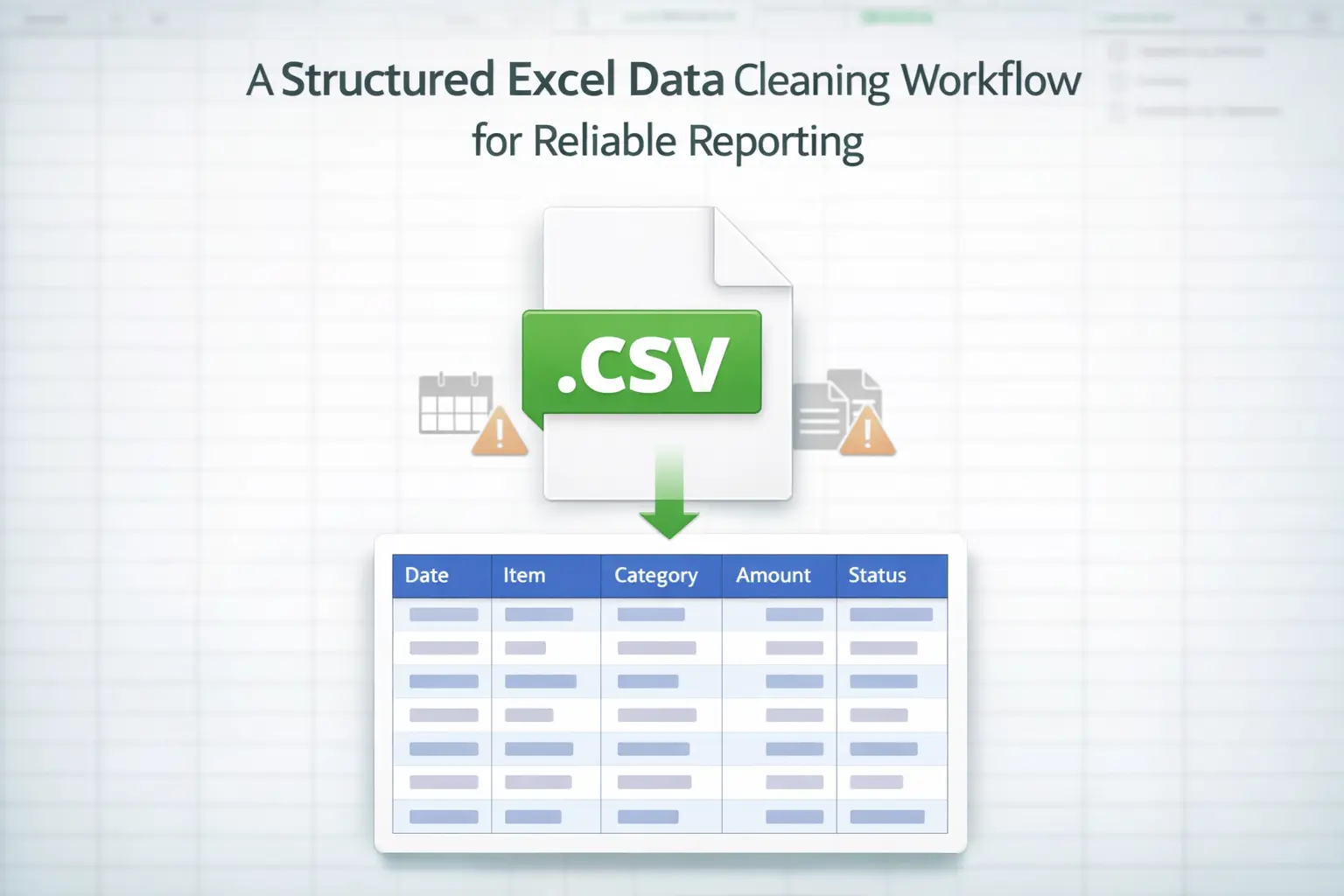
Excel errors rarely begin in formulas. They begin in workflow. A total that looks wrong. A PivotTable that groups incorrectly. A dashboard that suddenly shifts values. In most cases, the root cause is not a broken formula. It is unvalidated input data.
When external data enters Excel without structure, small inconsistencies multiply. Numbers become text. Dates convert incorrectly. Blank cells interrupt calculations. Duplicate rows inflate totals. Performance degrades. A structured Excel data cleaning workflow prevents those problems before reporting begins.
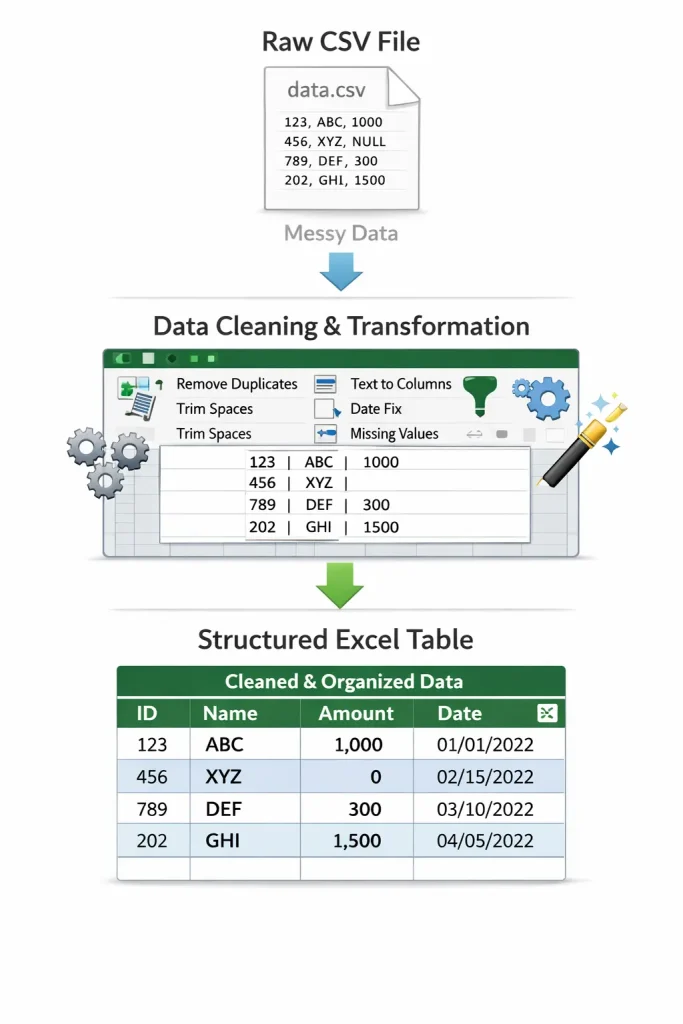
This article outlines a practical, repeatable process you can use every time new data enters a workbook. Each stage links to a detailed guide, but the framework itself is what ensures reliability.
Stage 1: Controlled Data Import
The cleaning process begins before the data is fully visible. Opening a CSV file by double-clicking allows Excel to guess column types automatically. Those guesses are often incorrect and difficult to reverse. Instead, import data deliberately and define column types where necessary. Prevent date misinterpretation. Protect leading zeros. Confirm text fields remain text.
If you regularly work with exported data, this guide explains the proper intake process:
/how-to-clean-imported-csv-data-in-excel/
Importing with control reduces downstream corrections dramatically.
Stage 2: Validate Data Types Immediately
After import, resist the urge to build formulas immediately. First, validate the structure. Look for:
- Numbers stored as text
- Unexpected date conversions
- Misaligned columns
- Inconsistent formatting
These issues appear minor but disrupt calculations later. If numeric values are not behaving correctly, address them before proceeding, checkout this tutorial on why Excel might say numbers are text. Data type validation is the foundation of predictable reporting.
Stage 3: Structural Cleanup
Once types are validated, examine structure.
Review Duplicate Rows
Duplicates may represent errors or legitimate repeated transactions. Deleting blindly can damage the dataset.
If you need distinct outputs without altering the source. Separating raw data from processed output is a core design principle.
Handle Blank Cells Intentionally
Blank cells must be evaluated. Some represent missing information. Others represent formatting gaps that disrupt formulas. Select and assess blanks deliberately, Intentional handling prevents silent reporting errors.
Stage 4: Stabilize Performance and Structure
Before building reports, verify workbook stability. Large datasets, volatile functions, excessive formatting, and entire-column references can slow recalculation and introduce instability.
Address structural performance concerns early: a stable file is a prerequisite for reliable analytics. Learn more about how to improve Excel performance in large workbooks.
Stage 5: Build Reports Only After Validation
Most spreadsheet errors happen because reporting begins too soon. The correct sequence is:
- Controlled import
- Data type validation
- Structural cleanup
- Performance review
- Reporting
When this order is reversed, errors compound. Once the dataset is clean and stable, you can confidently build PivotTables, summaries, dashboards, and analysis layers without second-guessing the foundation. This separation between raw input and structured reporting is what distinguishes disciplined spreadsheet design from reactive troubleshooting.
Why Workflow Discipline Matters
Excel is deterministic. It calculates exactly what it is given. If reporting outputs are incorrect, the issue almost always originates upstream. A structured Excel data cleaning workflow reduces:
- Calculation anomalies
- Inconsistent reporting
- Performance degradation
- Manual rework
- Hidden structural errors
Reliability in reporting is not achieved through better formulas. It is achieved through controlled input and validation.
Final Thoughts
Treat data cleaning as a formal stage, not a quick fix.
When you approach Excel with a defined workflow from import to reporting, problems become predictable and manageable instead of reactive and frustrating. Structure first. Analysis second. That order alone improves accuracy, performance, and long-term maintainability.