
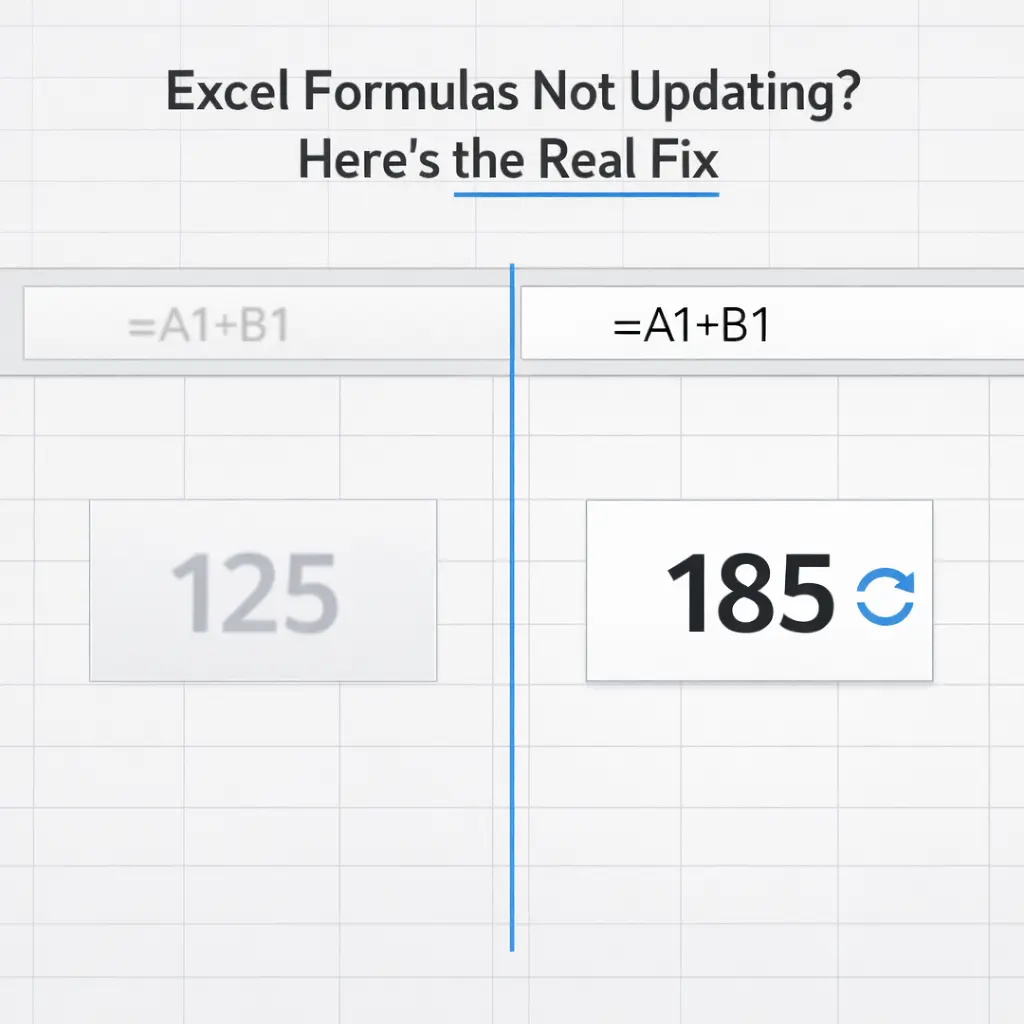
You change a value in Excel, expect the result to update automatically… and nothing happens.
The formula is still there. It looks correct. There’s no error. But the result stays frozen, as if Excel simply stopped paying attention.
This moment creates immediate distrust. You start double-checking everything. Did you break something? Is the formula wrong? Is Excel bugged?
In reality, Excel is almost never broken in these situations. What’s happening is that Excel has stopped recalculating, or it’s working with data that isn’t behaving the way you think it is.
Once you understand why formulas stop updating, the fix is usually immediate.
The Most Common Cause: Calculation Mode Is Set to Manual
Excel has two calculation modes:
- Automatic (normal behavior)
- Manual (Excel only recalculates when you tell it to)
If calculation mode is set to Manual, formulas do not update when values change. They stay frozen until a recalculation is triggered.
This setting exists for performance reasons. Large spreadsheets with thousands of formulas can slow down if Excel recalculates constantly. So Excel allows calculation to be paused.
The problem is that this setting sometimes gets enabled without you realizing it, especially when opening files created by other people.
To check and fix this:
- Go to the Formulas tab
- Click Calculation Options
- Select Automatic
Once enabled, Excel will immediately resume normal behavior.
Quick Test: Force a Recalculation
If you’re unsure whether calculation mode is the issue, press: F9
This forces Excel to recalculate everything.
If your formulas suddenly update, calculation mode was the problem.
Another Common Cause: Numbers Are Stored as Text
Excel formulas only work properly when the input values are real numbers.
If a cell looks like a number but is actually stored as text, formulas may ignore it or behave unpredictably.
This often happens when:
- Importing CSV files
- Copying data from websites
- Working with exported reports
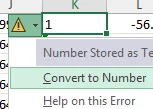
If you’ve run into this before, you’ll recognize the warning indicators Excel shows. For example also in when Excel says numbers are text.
If formulas depend on those cells, they may appear stuck when in reality Excel is ignoring invalid numeric input.
The Formula Itself May Not Be a Formula
This sounds obvious, but it happens constantly.
Sometimes a formula is actually stored as text, not as a formula.
You might see something like:
=SUM(A1:A10)
But Excel treats it as plain text instead of executing it.
This usually happens when:
- The cell was formatted as Text before entering the formula
- The formula was pasted incorrectly
- There’s a hidden character before the equals sign
To fix this:
- Select the cell
- Change the format to General
- Press F2
- Press Enter
Excel will now interpret it correctly.
Another Hidden Cause: The Worksheet Was Not Fully Recalculated
Sometimes Excel simply needs a full refresh.
You can force this with:
Ctrl + Alt + F9
This forces Excel to recalculate every formula in every open workbook.
This is especially useful when:
- Opening older files
- Working with complex formulas
- Using large datasets
Excel May Be Waiting on External Data or References
If your formulas depend on:
- External workbooks
- Linked files
- Imported data
Excel may pause recalculation until those references update.
This can make formulas appear frozen even though Excel is waiting on dependencies.
The Real Reason This Problem Is So Dangerous
The worst part isn’t that formulas stop updating.
It’s that Excel does not always make it obvious.
You can keep working, building reports, or making decisions based on results that are no longer accurate.
This is why experienced Excel users develop the habit of validating their calculation mode, especially when opening unfamiliar files.
Once you know what to look for, this problem becomes easy to diagnose and fix in seconds.
Final Thoughts
When Excel formulas stop updating, Excel isn’t broken. It’s almost always one of these causes:
- Calculation mode is set to Manual
- Input values are stored as text
- The formula itself isn’t being interpreted correctly
- Excel hasn’t recalculated yet
- External references haven’t refreshed
The key is understanding that Excel only calculates what it recognizes and what it’s told to calculate.
Once calculation mode is Automatic and your data types are correct, Excel becomes predictable again.
The most common reason is that calculation mode is set to Manual. Switch it to Automatic in the Formulas tab.
Press F9 to recalculate, or Ctrl + Alt + F9 to force a full recalculation of all open workbooks.
The cell may be formatted as Text. Change it to General, then press F2 and Enter.
Files created by other users or exported from systems may have Manual mode enabled to improve performance.
Yes. Excel may slow down or use Manual mode to prevent performance issues when working with complex datasets.