If you are still typing “Done”, “Yes”, or a checkmark symbol to track tasks in Excel, you are fighting the spreadsheet instead of using it.
Modern versions of Excel include nativ clickable checkboxes. No Forms controls. No VBA. No weird workarounds. Just real checkboxes you can click to mark something complete.
Most people do not even know this feature exists yet, which is why so many task lists in Excel are still cluttered and fragile.
In this guide, you will learn how to add clickable checkboxes in Excel using a simple shortcut, when this feature works, and how to actually use checkboxes in a practical way without breaking your sheet.
What Excel Checkboxes Actually Are
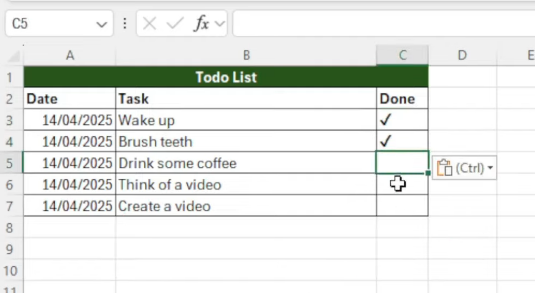
These are native cell-based checkboxes, not the old Form Controls you may have seen in older tutorials.
That matters because:
- They live inside cells.
- They copy, paste, and fill like normal data.
- They work cleanly with tables and formulas.
- They do not require developer tools or code.
Think of them as a new data type designed for yes or no input, rather than a visual gimmick.
How to Insert Clickable Checkboxes in Excel
This is the fastest method.
- Select the cell or range of cells where you want checkboxes.
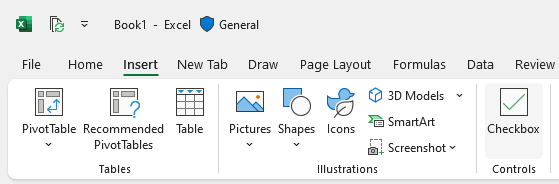
- Press the following shortcut sequence on your keyboard:
Alt → N → C → B
Excel immediately inserts clickable checkboxes into the selected cells.
That is it. No menus. No setup dialogs.
Excel Version Requirements (Important)
You need:
- Excel for Microsoft 365
- A reasonably recent update installed
If you do not see checkboxes after using the shortcut, your Excel version is likely the reason.
Using Checkboxes in a Real Spreadsheet
Checkboxes become useful when they are part of a system, not just visual markers.
A common example is a task list.
You might have:
- Column A: Task name
- Column B: Checkbox
- Column C: Status formula
When a checkbox is checked, Excel treats it as TRUE. When it is unchecked, it is FALSE.
That means you can write formulas like:
- Show “Done” when checked
- Count completed tasks
- Filter completed vs incomplete items
- Apply conditional formatting automatically
This is where checkboxes stop being cute and start being powerful.
Common Problems and How to Fix Them
If checkboxes feel broken, it is usually one of these issues.
Checkboxes do not appear at all
Your Excel version does not support them, at the time of writing they are only available in the office 356 version.
Checkboxes do not behave consistently when copied
Make sure you are copying cells normally, not dragging shapes or mixed selections.
Checkboxes do not work with formulas
Remember that a checkbox itself is the value. You do not need to link it to another cell like older Form Controls.
If you plan to combine checkboxes with keyboard-heavy workflows, you may want to revisit essential Excel shortcuts that speed up navigation and editing.
When You Should Not Use Checkboxes
Checkboxes are not a replacement for all data input.
Avoid them when:
- You need more than two states.
- You are exporting data to systems that do not support them.
- You need compatibility with very old Excel files.
In those cases, dropdowns or structured values may still be better.
Why This Is Better Than Typing Symbols
Typing symbols creates inconsistent data. One extra space or typo and formulas fail silently.
Checkboxes:
- Enforce clean TRUE or FALSE values.
- Are impossible to mistype.
- Make sheets easier to scan visually.
- Scale better as spreadsheets grow.
This is the same reason tools like Flash Fill exist, to reduce human error instead of correcting it later.
Final Thoughts
Clickable checkboxes are one of those features that feel obvious once you use them, and frustrating once you realize how long you worked without them.
They are fast to insert, easy to understand, and integrate cleanly with formulas and tables. For task tracking, simple workflows, and interactive spreadsheets, they are one of the most practical additions Excel has made in years.
Once you start using them, typing “Done” will feel primitive.