
CSV files look simple. They are not. At first glance, a CSV file appears to be a clean dataset: rows, columns, neatly separated values. But the moment you open it in Excel, problems often begin. Dates convert unexpectedly. Numbers become text. Leading zeros disappear. Blank rows appear. Duplicate entries slip through.
If you work with exported reports, accounting systems, CRM data, or third-party tools, learning how to clean CSV data in Excel properly is essential. The key is not fixing issues randomly after they appear. The key is following a controlled workflow every time you import external data.
This guide walks through that workflow step by step.
Step 1: Import the CSV File With Control (Do Not Double-Click)
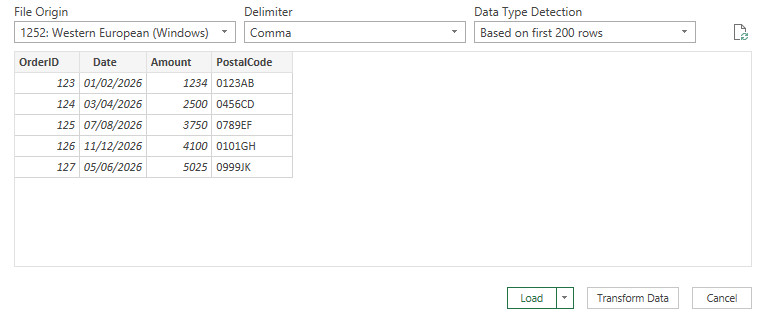
The most common mistake is opening a CSV file by double-clicking it. When you do that, Excel applies automatic guesses to each column. Those guesses are often wrong. Instead, import the file through Excel’s data tools. This allows you to review and define column data types before the data fully loads. During import, check:
- Columns that look like dates but are actually IDs
- Numeric columns that should not lose leading zeros
- Text fields that contain special characters
This single step prevents many of the issues people later try to repair manually.
Step 2: Validate Data Types Immediately
Once the data is loaded, do not start building formulas yet. First, validate the structure.
Look for:
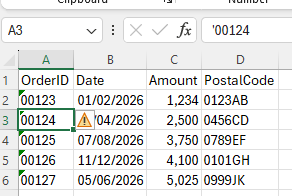
- Numbers stored as text
- Unexpected date conversions
- Columns that should be text but are numeric
- Blank rows inside structured data
If you notice warning indicators or inconsistent alignment, address those before proceeding. If you encounter numeric values behaving strangely, this often connects to the issue of numbers being stored as text.
Step 3: Check for Unwanted Date Conversions
Excel aggressively interprets patterns as dates. Values like:
- 1-2
- 3-4
- 10-12
- 2024-01
may be converted automatically. If your dataset includes codes, product IDs, or version numbers, confirm that no unwanted date formatting occurred during import. If this is a recurring problem in your workflow, adjusting import settings is more effective than fixing conversions afterward.
Step 4: Remove Duplicate Rows Intentionally
Many exported datasets include repeated entries. Before deleting anything, determine whether duplicates represent:
- Data errors
- Valid repeated transactions
- Aggregated rows
If duplicates are errors, use Excel’s Remove Duplicates tool carefully. If you need a distinct list without modifying the source, create a unique list on a separate sheet instead.
Step 5: Handle Blank Cells Properly
Imported CSV files often contain blank cells where systems left fields empty. These blanks can:
- Break calculations
- Create inconsistencies in PivotTables
- Affect summaries and totals
Select blank cells within your structured range and decide whether they represent missing data or formatting gaps. If blanks are structural, fill them deliberately. If they represent unknown data, leave them empty but documented.
Step 6: Trim Excess Formatting and Hidden Rows
After cleaning structural issues, check whether the sheet contains:
- Extra blank rows far below the dataset
- Hidden columns
- Unnecessary formatting
Press Ctrl + End to see where Excel considers the “end” of the sheet. If it jumps far beyond your data, you may need to clear unused ranges. This improves both file size and performance.
Step 7: Only Then Build Formulas and Reports
This is where many users reverse the process. They:
- Import data
- Immediately build formulas
- Then discover structural problems
Instead, complete the cleaning workflow first. When data types are correct, duplicates are reviewed, blanks are intentional, and formatting is trimmed, Excel becomes predictable. Only then should you build summaries, dashboards, or PivotTables.
The Repeatable CSV Cleaning Workflow
For clarity, here is the complete structure:
- Import with controlled column types
- Validate numbers and text formatting
- Confirm no unwanted date conversions
- Review duplicates
- Handle blank cells
- Remove structural formatting issues
- Build reports last
Following this sequence prevents cascading errors later.
Final Thoughts
Cleaning imported CSV data in Excel is not about fixing isolated problems. It is about preventing structural errors before they spread. When you treat CSV imports as a controlled intake process instead of a quick open-and-edit action, you eliminate most common Excel frustrations before they begin.
Data integrity is not accidental. It is procedural.