
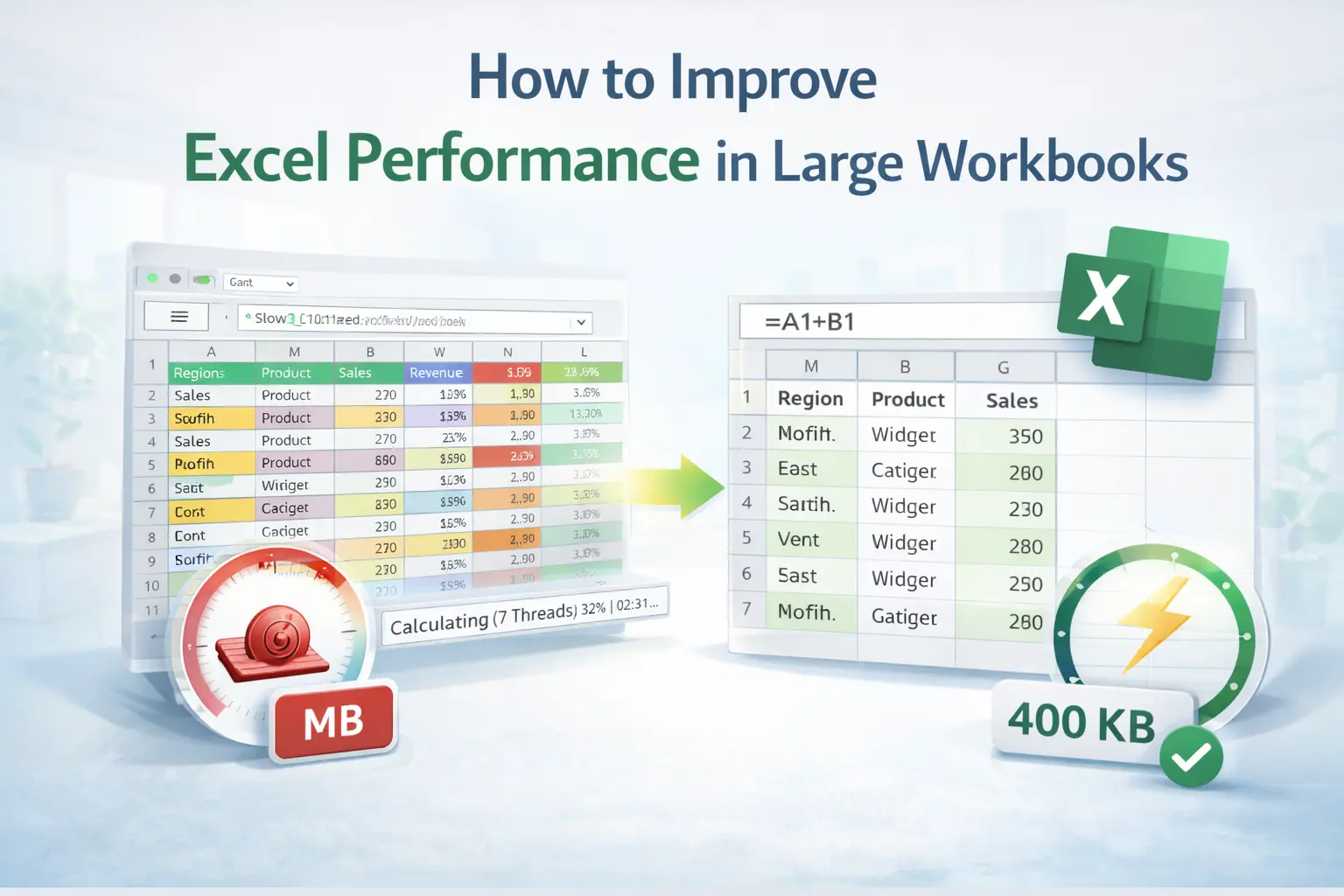
Excel slowing down is rarely random. It’s usually structural. A workbook that opens slowly, recalculates endlessly, or freezes during simple edits is almost always suffering from design issues rather than hardware limitations. Large datasets, volatile formulas, unnecessary formatting, and hidden references accumulate over time until performance degrades noticeably.
If you work with reporting files, imported datasets, or operational spreadsheets, learning how to improve Excel performance is not optional. It directly affects reliability, calculation accuracy, and user confidence. This guide explains the real causes of slow Excel workbooks and how to fix them systematically.
1. Check Calculation Mode First
Before optimizing anything, verify that Excel is set correctly. Go to:
Formulas → Calculation Options
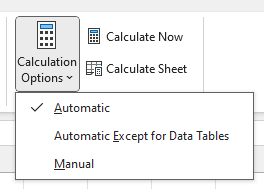
If calculation mode is set to Manual, Excel will not recalculate automatically. If it is set to Automatic in a massive file, recalculation may trigger constantly and cause lag. In large workbooks, you may temporarily switch to Manual during heavy edits, but always return to Automatic before finalizing results. If you’ve encountered formulas not updating before, calculation mode is often the underlying cause.
2. Reduce Volatile Formulas
Some Excel functions recalculate every time anything changes in the workbook. These are called volatile functions. Common volatile functions include:
- NOW()
- TODAY()
- RAND()
- INDIRECT()
- OFFSET()
In large sheets, excessive use of volatile functions forces Excel to recalculate far more than necessary. Replace volatile functions with structured references or helper columns where possible. Removing unnecessary volatility dramatically improves responsiveness.
3. Limit Entire Column References
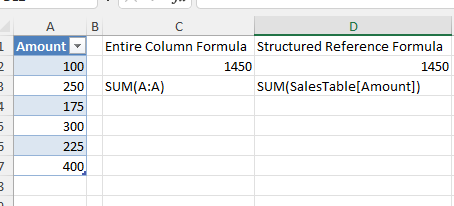
Formulas like:
=SUM(A:A)may look clean, but they force Excel to evaluate over a million rows in modern versions. Instead, reference structured ranges or convert your dataset into a Table so Excel automatically scopes formulas to the used range. Tables improve both readability and performance in structured datasets.
4. Remove Excess Formatting
Formatting spreads invisibly. Sometimes a workbook becomes slow because formatting was applied far beyond the actual dataset. Excel treats formatted cells as used, even if they contain no data. To check:
- Press Ctrl + End
- See where Excel believes your sheet ends
If the active cell jumps far beyond your actual data, you likely have excess formatting. Clearing unused rows and columns and saving the file can significantly reduce file size and improve speed.
5. Reduce External References and Links
Workbooks that reference other files must retrieve data during calculation. If those linked files are large or stored on a network drive, performance suffers. Consider:
- Consolidating linked data
- Replacing repeated lookups with static values where appropriate
- Breaking unnecessary external connections
External dependencies slow calculation and increase instability.
6. Avoid Overusing Conditional Formatting
Conditional formatting recalculates constantly as values change. Large datasets with multiple conditional rules can slow Excel dramatically. Audit your rules:
- Remove duplicates
- Combine similar rules
- Restrict formatting to necessary ranges only
Keep visual logic lean.
7. Split Heavy Workbooks Into Logical Components
Sometimes performance issues are architectural. If one workbook handles:
- Raw imports
- Data cleaning
- Reporting
- Dashboards
- Historical archives
consider separating responsibilities. For example:
- One file for raw data
- One file for processed analysis
- One file for reporting
This reduces memory strain and recalculation overhead.
The Bigger Pattern
Performance problems are usually symptoms of workflow design decisions:
- Importing without validation
- Referencing entire columns
- Building reports before cleaning data
- Layering formatting over messy structures
Improving Excel performance is not about finding one magic setting. It’s about tightening the structure of your workbook. When the foundation is clean, Excel becomes predictable again.
Final Thoughts
If Excel feels slow, it is almost always reacting to workload, not failing. Start with calculation mode. Audit volatile formulas. Eliminate unnecessary formatting. Replace entire column references with structured ranges. Performance improves when design improves.
The goal is not just faster files. It is more stable, maintainable spreadsheets that scale without degrading over time.