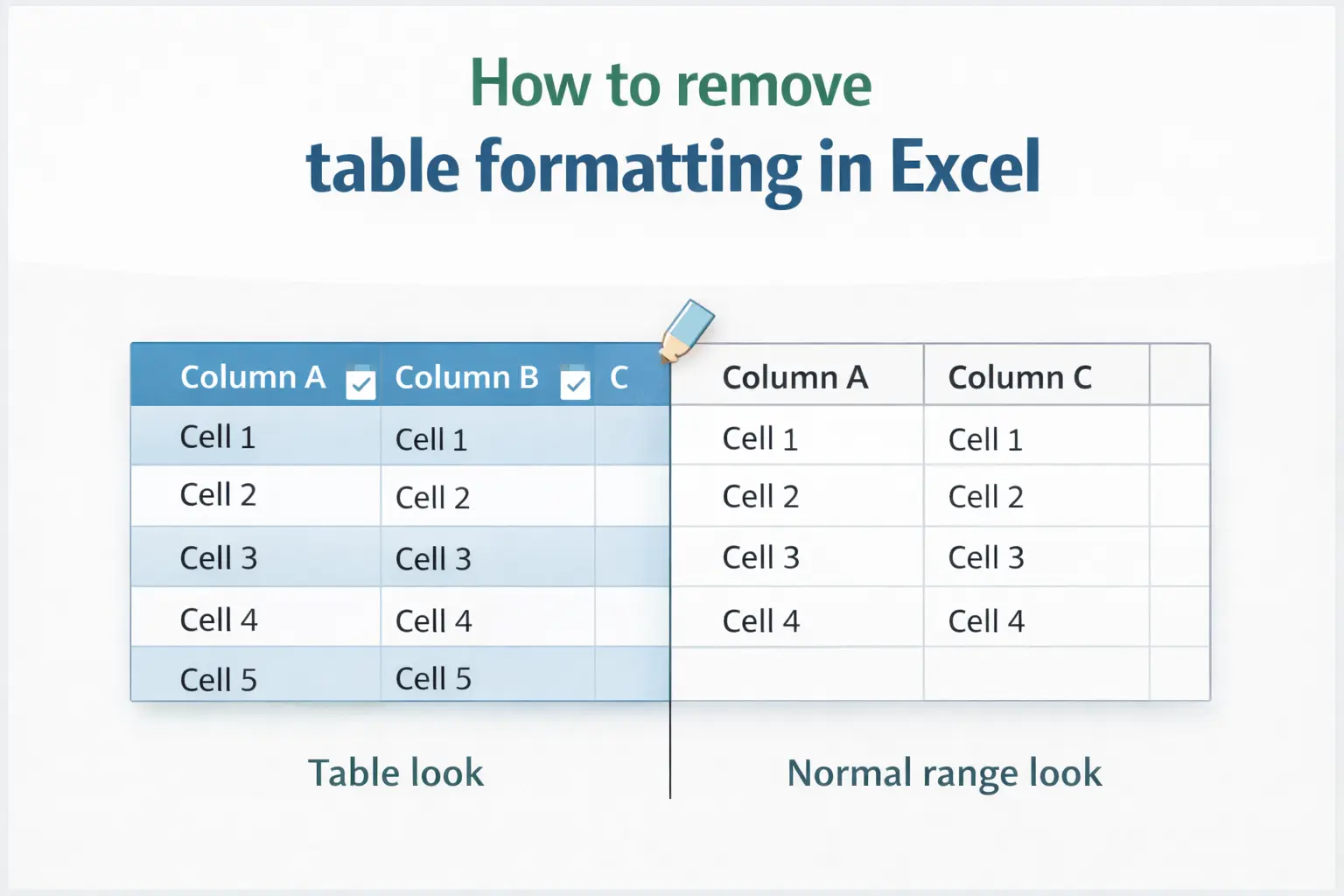
Excel Tables are great… until they aren’t.
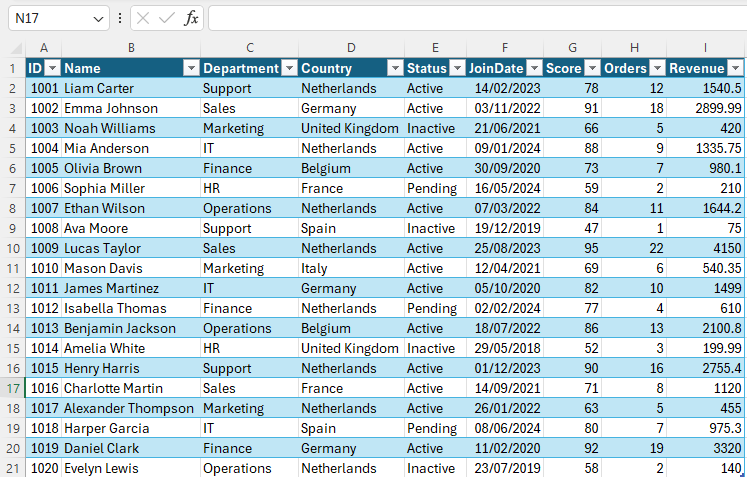
At some point, almost everyone hits the same moment: you’re working in a file, someone formatted the data as a Table, and now you’re stuck with banded rows, filter dropdowns, table styles, and that “Table Design” tab that changes how everything behaves.
Maybe you just want a normal range again. Maybe you’re cleaning up a template. Or maybe you’re sharing the sheet and you don’t want the Table styling and behavior coming along for the ride.
The good news: you can remove table formatting in Excel in a few different ways. The important part is choosing the right one, because some options remove only the look, while others remove the Table structure itself.
First: Decide What You Want to Remove
Most people say “remove table formatting”, but they usually mean one of these two things:
- “I want this to stop being a Table”
You want to remove the Table behavior (filters, structured references, auto-expanding, etc.) - “I want to keep it as a Table, but remove the style/colors”
You want the Table functionality, just not the formatting.
These are different actions in Excel. Need a quick refresher on how Excel Tables work in the first place? Here’s my full step-by-step guide: How to Create Tables in Excel.
Option 1: Convert the Table Back to a Normal Range (Best if you hate Tables)
If you want to remove the Table entirely (including its formatting behavior), this is the cleanest method. Steps:
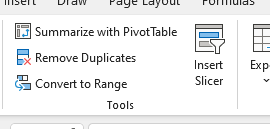
- Click any cell inside the table
- Go to the Table Design tab
- Click Convert to Range
- Confirm with Yes
This converts it into a normal range again. Important:
Excel usually keeps the current colors and formatting after the conversion, so the Table is gone, but the “look” may remain. That’s normal.
Option 2: Remove the Table Style but Keep the Table (Best of both worlds)
Sometimes you still want the Table features:
- sorting and filtering
- structured references
- automatic expansion
- total row
You just do not want the styling. Steps:
- Click anywhere inside the table
- Go to Table Design → Table Styles
- Choose the style called None (or “Clear” depending on your Excel version)
This keeps the Table structure but removes the visual formatting.
Option 3: Clear Formatting (Fastest “Just make it normal looking” method)
This method is popular because it’s fast, but it can be destructive if you rely on formatting. Steps:
- Select the cells you want to clean
- Go to Home → Clear
- Choose Clear Formats
This removes:
- table colors
- borders
- font styles
- number formatting (sometimes indirectly depending on usage)
It does not remove the fact that the data may still be a Table unless you also convert it to a range first. This is a “wipe the look” option, not a “remove the Table” option.
Option 4: Remove Filters Without Removing the Table
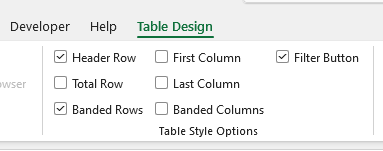
Sometimes the real complaint is not the formatting, it’s the filter dropdown arrows. If you want the same data but no filter UI:
- Click inside the Table
- Go to Table Design
- Uncheck Filter Button
This keeps the Table structure and style, but removes the dropdown arrows.
What Happens to Formulas When You Remove Table Formatting?
This is where people get surprised. If your sheet uses structured references like:
=SUM(Table1[Amount])
and you convert the table to a range, Excel will usually rewrite that formula into normal cell references automatically. That sounds helpful, but it can also make formulas less readable and harder to maintain. So if your workbook is heavily built around structured references, removing the Table entirely can create messy formulas, even if the numbers still calculate correctly.
The Cleanest “I Want a Normal Range Again” Workflow
If your goal is “I want this to behave like a normal Excel sheet again”, here is the safest approach:
- Convert the table to a range
- If it still looks like a Table, clear formats or apply your preferred formatting
- Re-apply number formats if needed (currency, dates, decimals)
- Save the file and confirm formulas still work
This avoids losing data while still getting rid of the Table behavior and the design layer.
Excel Tables are not bad. They are often the best way to work with structured data. But sometimes you inherit a file that’s over-styled, over-engineered, or just not what you want.
The key is this:
- If you want to remove Table behavior, use Convert to Range
- If you want to remove only the look, choose a None Table style
- If you want to wipe formatting fast, use Clear Formats
Once you know the difference, removing table formatting stops being a frustrating guessing game and becomes a two-click fix.
Yes. Removing table formatting does not remove your data. You can either convert the Table to a normal range, or keep it as a Table and simply change the Table Style to “None”.
Convert to Range removes the Table structure (so it stops being a real Excel Table). Clear Formats removes the styling (colors, borders, fonts), but your data might still be inside an actual Table unless you convert it first.
Because the filter arrows are part of the Table feature, not the styling. If you want to hide them, go to Table Design and disable the Filter Button option.
Usually not, Excel converts structured references into normal cell references automatically. But formulas can become harder to read and maintain, especially in larger workbooks.
The cleanest method is: Convert the Table to a range, then use Clear Formats, then reapply only the number formats you actually need (like currency or dates).