
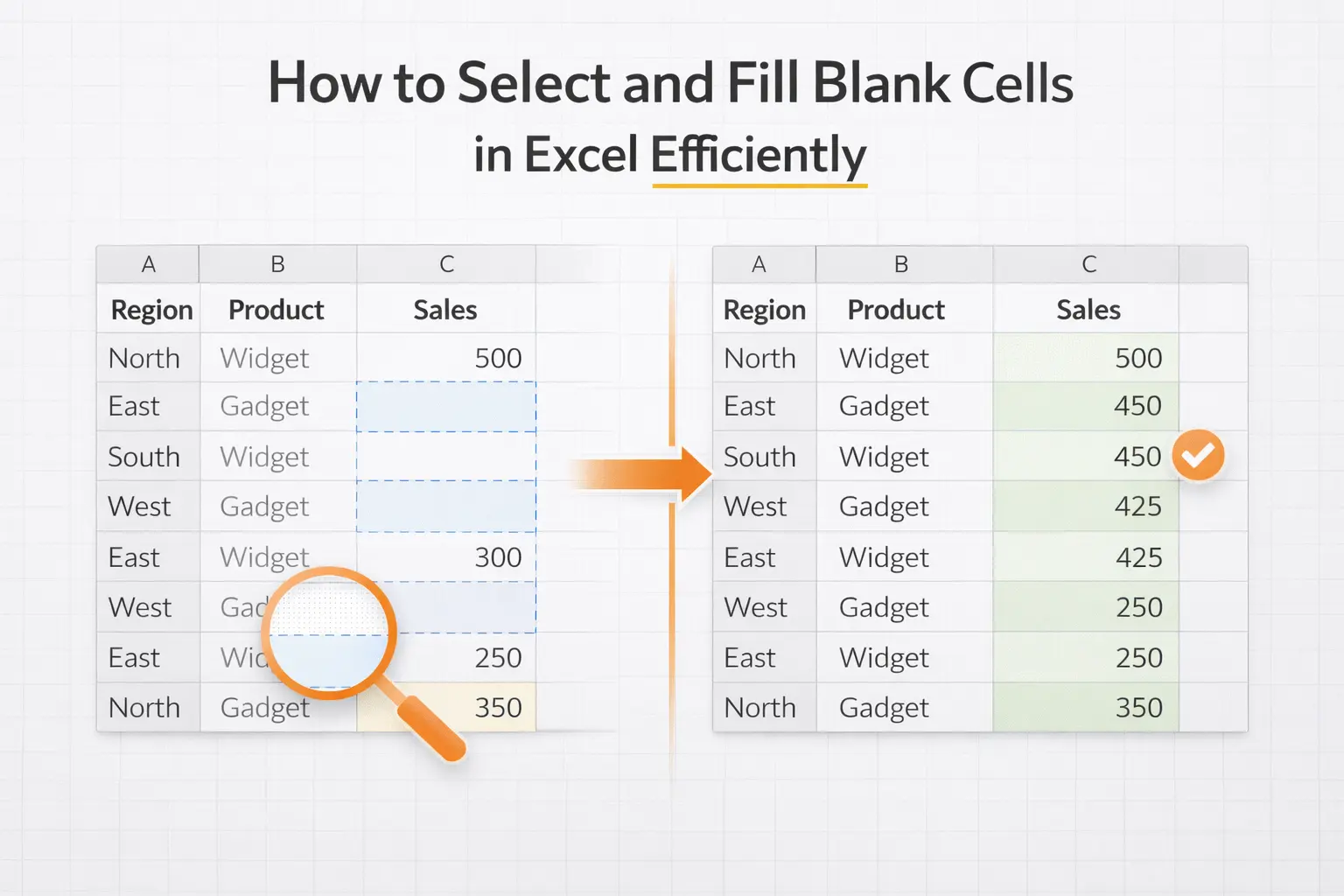
Blank cells in Excel look harmless. They sit quietly inside a dataset, invisible until something breaks. A total seems off. A chart skips values. A PivotTable groups entries incorrectly. A formula returns unexpected results. And somewhere in the middle of all that, blank cells are often the reason. The issue is not that blank cells exist. The issue is that they exist without intention.
In structured data, a blank cell should either represent something specific or be handled deliberately. This guide explains how to select blank cells in Excel efficiently, how to fill blank cells safely without breaking formulas, and when it’s better to leave them untouched.
Why Blank Cells Cause Real Problems
Excel treats blank cells differently from zero, empty text, or missing data markers. Blank cells can:
- Break formulas that expect continuous values
- Disrupt sorting and filtering
- Create gaps in charts
- Produce misleading PivotTable summaries
- Hide structural problems in imported data
In other words, blanks are not neutral. They influence how Excel calculates and interprets your sheet. Before building reports or analysis, identifying blank cells should be part of your standard workflow.
How to Select All Blank Cells in Excel (The Fast Way)
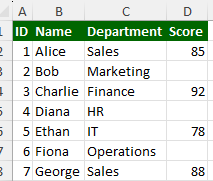
Excel provides a precise way to select only blank cells within a range.
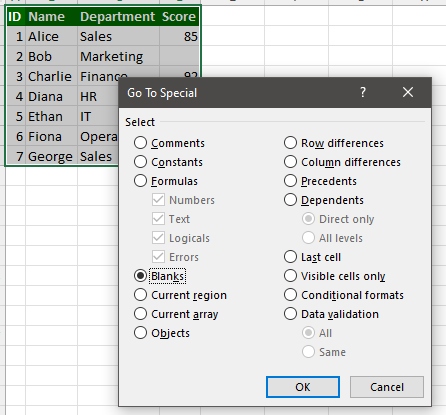
- Select the data range you want to check
- Press Ctrl + G (or F5)
- Click Special
- Choose Blanks
- Click OK
Excel will instantly select only the empty cells inside your selected range. This method is significantly safer than manually scanning columns, especially in large datasets.
Important:
Always select the correct range first. If you accidentally select the entire worksheet, Excel will include blank cells outside your dataset.
Filling Blank Cells With the Value Above (Safely)
One common scenario involves imported data where a value applies to multiple rows, but only the first row contains the actual entry. For example:
- A category appears once
- The rows beneath it are blank
- Each row still belongs to that category
To fill blanks with the value above:
- Select the relevant column
- Use Go To Special → Blanks
- Type
= - Press the Up Arrow key
- Press Ctrl + Enter
Excel fills all selected blank cells with the value directly above them. Immediately after, copy the column and use Paste Values to remove formulas and lock in the data. This method preserves structure and prevents accidental overwrites.
When You Should NOT Fill Blank Cells
Not all blanks are mistakes. Sometimes blank cells represent:
- Unknown data
- Optional fields
- Legitimate missing values
- Incomplete submissions
Filling those with placeholders like “N/A” or zero can distort analysis. For example:
- Replacing blanks with zero may change averages
- Replacing blanks with text may break numeric calculations
The key question is: Does the blank represent missing data, or incomplete formatting? Treat those scenarios differently.
Blank Cells vs Cells That Only Appear Blank
This is a subtle but important distinction. Some cells look empty but actually contain:
- A formula returning
"" - A space character
- Hidden formatting
- Data imported incorrectly
These are not true blank cells.
The Go To Special → Blanks method only selects genuinely empty cells. If expected blanks are not selected, the issue may be hidden content rather than emptiness. This often connects to broader data-cleaning issues such as numbers stored as text.
The Right Workflow for Handling Blank Cells
Experienced Excel users don’t fix blanks randomly. They follow a process:
- Import or paste data
- Select and review blank cells
- Decide which blanks represent structural gaps
- Fill intentionally where needed
- Validate formulas afterward
Blank cells are a signal. They tell you something about your data structure. Responding deliberately instead of automatically makes your spreadsheets more reliable.
Final Thoughts
Selecting and filling blank cells in Excel is not just a formatting trick. It’s a data integrity step. Handled correctly, it prevents calculation errors, improves reporting accuracy, and keeps your analysis predictable. Handled carelessly, it can quietly distort results. Efficiency in Excel is not about speed alone. It’s about making intentional decisions before problems spread.