

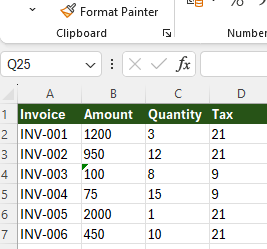
You open a spreadsheet, everything looks fine, but Excel insists your numbers are text. You see the warning. Formulas fail. Sorting behaves strangely. SUM returns zero. Nothing makes sense.
This is not Excel being random. Excel is doing exactly what it was told, just not what you thought you told it.
The real problem is that numbers can look correct while being fundamentally broken underneath. Once you understand why this happens, fixing it becomes straightforward, and more importantly, preventable.
What “Numbers Stored as Text” Actually Means
Excel does not care how a value looks. It cares how it is stored. A real number is something Excel can calculate with. Text is just a string of characters that happens to resemble a number. When Excel says a number is stored as text, it means:
- Formulas will not behave as expected
- Sorting may be alphabetical instead of numerical
- Calculations may silently fail
- Data validation and filters can break
This is why the issue feels so deceptive. You are staring at digits, but Excel is staring at text.
The Most Common Reasons This Happens
This problem almost never originates inside Excel itself. It comes from how the data entered Excel. The usual culprits are:
- CSV imports
- Copy-pasting from websites or PDFs
- Data exported from other systems
- Locale mismatches (comma vs dot)
- Leading apostrophes or hidden characters
Excel plays it safe. If it is not completely sure something is numeric, it stores it as text.
How to Tell If a Number Is Actually Text
There are a few reliable signs.
- A small green triangle in the top-left corner of the cell
- Numbers aligned to the left by default
- SUM or AVERAGE returns zero
- Multiplying by 1 does nothing
These are not bugs. They are clues.
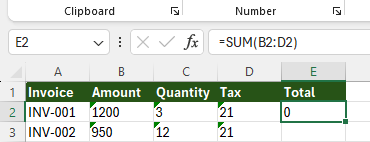
The Fastest Way to Fix It (For Small Ranges)
If Excel shows the warning icon:
- Select the affected cells
- Click the warning symbol
- Choose Convert to Number
This works well for small datasets and clean data. It fails when:
- There are hidden characters
- Locale formatting is inconsistent
- Data came from mixed sources
The Reliable Fix That Works Almost Every Time
The most dependable fix is to force Excel to recalculate the values. A simple method:
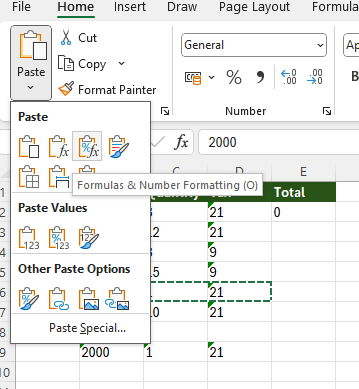
- Select the affected cells
- Use Paste Special → Multiply with the value 1
This forces Excel to reinterpret the content as numeric. Another reliable approach:
- Use the VALUE function on a helper column
- Copy the results
- Paste values back over the original data
These methods do not rely on Excel’s guesses. They force a conversion.
Why This Keeps Coming Back
The real frustration is not fixing it once. It is fixing it again and again. That happens because:
- Imports repeat the same formatting issues
- CSV files do not store data types
- External systems do not agree on number formats
- Excel defaults to safety over assumptions
If you work with external data, this problem is not going away on its own.
How to Prevent It in the Future
Prevention beats cleanup. You reduce this issue dramatically by:
- Using Excel’s import tools instead of copy-paste
- Setting correct locale and delimiter options
- Avoiding manual fixes until after data is loaded
- Validating numeric columns immediately after import
The goal is to catch the issue early, before formulas depend on broken data.
Why This Problem Is So Dangerous
The worst part is not the warning. It is the silent errors. Text numbers can:
- Produce incorrect totals
- Break reports without obvious signs
- Pass visual inspection
- Undermine trust in your spreadsheet
Excel is not lying to you. It is warning you. Most users just do not know how to listen.
Final Thoughts
“Numbers stored as text” is not an Excel quirk. It is a data hygiene problem. Once you understand that Excel is strict about data types, the behavior makes sense. Fixing it becomes mechanical, and preventing it becomes part of your workflow. If Excel ever feels unpredictable, it is usually because something looks right but is fundamentally wrong underneath.