
Grouping is where PivotTables move from simple summaries to actual analysis.
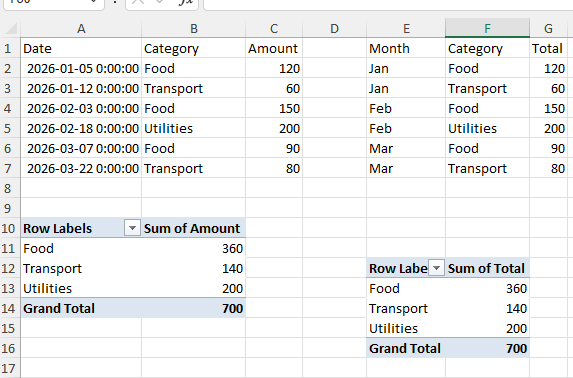
Without grouping, a PivotTable often mirrors the raw data too closely. You get long lists of individual values, but very little structure. The moment you start grouping, patterns begin to appear. Dates turn into months, numbers turn into ranges, and categories become easier to compare.
Learning how to group data in PivotTables is not about applying a feature. It is about deciding how your data should be structured to answer a question.
Why Grouping Matters in Analysis
Raw data is rarely organized in a way that makes analysis easy. A dataset might contain:
- hundreds of individual dates
- thousands of transaction values
- repeated categories with slight variations
If you drop that directly into a PivotTable, the result is technically correct but difficult to interpret. Grouping simplifies that structure. Instead of:
- 365 individual dates, you get months or quarters
- hundreds of values, you get ranges
- scattered labels, you get consistent categories
This is where a PivotTable becomes useful instead of overwhelming.
Grouping Dates Into Meaningful Periods
Date grouping is the most common and most useful form of grouping.
A PivotTable will often list every individual date as a separate row. That is rarely helpful. In most cases, you want to see trends over time, not individual entries.
To group dates:
- Place your date field in the Rows area
- Right-click any date in the PivotTable
- Choose Group
- Select the level you need (months, quarters, years)
Excel will restructure the data instantly. The key decision is not the action itself. It is choosing the correct level of aggregation. Monthly summaries reveal trends. Yearly summaries reveal scale. Daily data is rarely useful unless you are analyzing short timeframes.
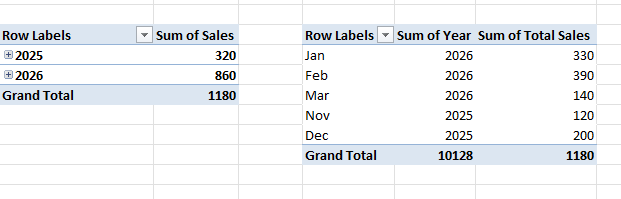
When Date Grouping Doesn’t Work
If Excel refuses to group dates, the issue is almost never the PivotTable. It usually means the underlying data is not being recognized as proper dates. Common causes include:
- dates stored as text
- blank cells in the date column
- inconsistent formats from imports
This is a data integrity issue, not a PivotTable limitation. Grouping only works when the data is structurally consistent.
Grouping Numbers Into Ranges
Numbers can also be grouped to make large datasets easier to interpret. For example:
- sales values can be grouped into ranges
- ages can be grouped into brackets
- quantities can be grouped into intervals
To group numbers:
- Place the numeric field in Rows
- Right-click a value
- Choose Group
- Define the start, end, and interval
Instead of hundreds of unique values, you now get structured ranges. This is especially useful when you want to understand distribution rather than individual entries.
Grouping Categories for Consistency
Sometimes grouping is not about ranges or dates, but about consistency. Datasets often contain categories that should be grouped manually. For example:
- “North”, “North Region”, and “N” may represent the same category
- product names may have slight variations
- labels may not be standardized
PivotTables allow manual grouping:
- Select multiple items in the PivotTable
- Right-click and choose Group
- Rename the group
This allows you to impose structure on messy categorical data without changing the source dataset. However, this should be used carefully. Manual grouping is a layer on top of the data, not a correction of the data itself.
Grouping Is Only as Reliable as the Data
If grouping produces inconsistent or confusing results, the issue is usually upstream. Grouping depends on:
- consistent data types
- clean categories
- absence of structural errors
If your dataset contains duplicates, blanks, or inconsistent formatting, grouping will amplify those problems instead of solving them. This is why grouping fits into a broader workflow of keeping your data clean and workable. When the input is controlled, grouping becomes predictable.
A Practical Way to Approach Grouping
Instead of grouping immediately, step back and ask: What structure would make this data easier to understand? Then apply grouping to match that structure. For example:
- Time-based data → group into months or quarters
- Numeric data → group into ranges
- Categories → standardize or group manually
Grouping is not a feature you apply. It is a decision you make.
Final Thoughts
Grouping is one of the simplest actions in a PivotTable, but it has a disproportionate impact on how useful your analysis becomes. Without grouping, PivotTables summarize. With grouping, they explain.
Once you start thinking in terms of structure rather than raw values, PivotTables become far more effective at revealing patterns instead of just listing them.